

RedHub.ai • Smart Home Privacy
⏱️ Read Time: 9 minutes
TL;DR: Search Party is Ring’s opt-out, AI-powered lost-pet scanning feature, and it’s enabled by default on eligible outdoor cameras. This guide shows you how to turn it off step-by-step, plus five other Ring privacy settings worth auditing.
📚 In This Series
- Pillar: The Trojan Dog: Ring Search Party Backlash
- Cluster: Ring’s Super Bowl Ad Backlash, Explained
- Next: Nancy Guthrie Case: Deleted Doorbell Footage?
- Coming Soon: What Ring’s FTC Settlement Means for Smart Homes
- Coming Soon: AI Feature Creep: How “Just for Dogs” Becomes “Just for Everyone”
Official product hub: Ring.com
How to Turn Off Ring Search Party (Step-by-Step)
Your Ring camera may be scanning your neighborhood right now for strangers' lost dogs.
You probably didn't agree to that. You may not even know it's happening. That's because Search Party — Ring's AI-powered neighborhood scanning feature — is turned on by default on every eligible outdoor Ring camera. When Ring aired its Super Bowl ad showing the system in action, millions of users immediately searched for how to turn it off.
This guide walks you through exactly how to do that — plus five other privacy settings worth auditing while you're already in the app.
What Is Search Party and Why Is It On by Default?
Search Party is an AI feature that lets a pet owner upload a photo of a missing dog, then uses nearby Ring outdoor cameras to scan for a visual match across the neighborhood. When a potential match is detected, the camera owner gets a notification and can choose to share a clip.
Ring frames it as a voluntary community tool. The catch: the scanning participation is opt-out, not opt-in. If you have an eligible outdoor Ring camera with a cloud subscription and you haven't touched this setting, your camera is likely participating in these searches already.
Ring also bundles a second feature into the same menu: Natural Hazards (Fire Watch), which scans your camera feeds for signs of smoke or fire. That feature is also on by default.
How to Turn Off Ring Search Party (Step-by-Step)
This works on both iOS and Android. Make sure your Ring app is updated before you start — older versions may not show the Search Party menu item.
Step 1: Open the Ring app and go to the main dashboard.
Step 2: Tap the three-line menu icon (☰) in the top-left corner.
Step 3: Tap Control Center.
Step 4: Scroll down and tap Search Party.
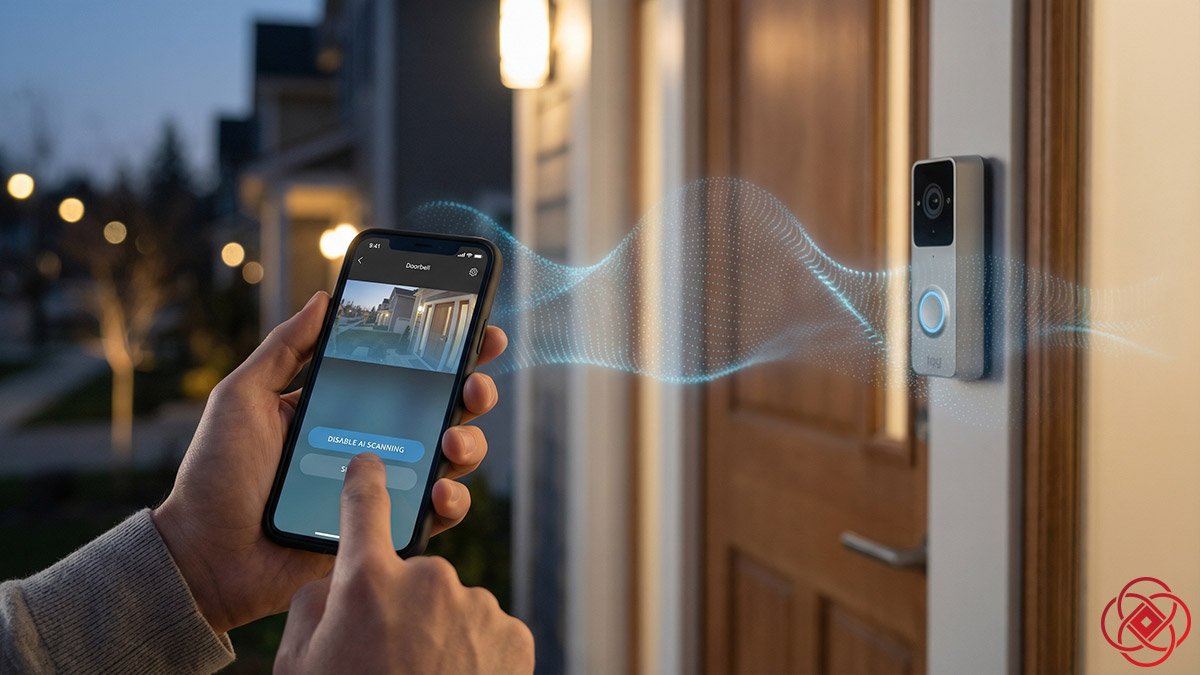
Step 5: Under Search for Lost Pets, tap Enable or Disable to toggle the feature off for your account.
Step 6: Tap the blue Pet icon next to each individual camera listed to confirm it's disabled per device. This is important if you have multiple cameras — the account-level toggle may not override per-device settings automatically.
Step 7: While you're in the same menu, tap Enable or Disable under Natural Hazards (Fire Watch) and repeat the same per-camera toggle if you want to disable that as well.
That's it. You're out of the search network.
Does Disabling Search Party Actually Stop Ring from Accessing Your Footage?
This is the part Ring's official instructions don't address — and it matters.
The short answer: disabling Search Party stops your camera from participating in pet-search notifications. It does not stop Ring from storing your footage on its servers.
Several security researchers and Ring power users on Reddit have pointed out that Ring's "disable" toggle essentially signals your preference to Ring — it does not alter what data is captured and uploaded to Ring's cloud infrastructure. If your camera is connected and recording, footage is flowing to Ring's servers regardless of which features you've toggled off.
This was demonstrated in real terms during the Nancy Guthrie case in early February 2026, when the FBI recovered doorbell camera footage that technically shouldn't have existed — extracted from backend systems even though the homeowner had no active cloud subscription.
In other words: the off switch controls your participation in the feature. It does not control Ring's data infrastructure.
If that distinction concerns you, the only way to fully prevent footage collection is to physically disconnect or power down the camera. For most people, a practical middle ground is completing the full privacy audit below.
5 More Ring Privacy Settings Worth Changing Today
Since you're already in Control Center, here's every other setting worth reviewing — with instructions for each.
1. Community Requests (Law Enforcement Video Requests)
What it is: Community Requests lets local police departments and public safety agencies post requests for footage from Ring users in a defined area through the Neighbors app. You receive a notification, and you can choose whether to respond.
Participation is voluntary — law enforcement cannot automatically access your footage through this feature. But if you respond and submit a clip, your home address and email address are attached to that submission and cannot be retracted once sent.
How to turn it off:
1. Open the Neighbors app (separate from the Ring app)
2. Tap the three-line menu in the top-left corner
3. Go to Neighborhood Settings → Feed Settings
4. Uncheck Community Requests
5. Tap Apply
Alternatively, from the Ring app: Menu (☰) → Control Center → Video Requests → toggle off → confirm.
2. Familiar Faces (Biometric Face Recognition)
What it is: Familiar Faces is Ring's biometric feature that learns to recognize regular visitors — delivery drivers, family members, neighbors — and sends you customized alerts when they appear on camera.
This is the feature privacy advocates point to when Ring claims Search Party "can't process human biometrics." Technically accurate for Search Party specifically — but the broader product absolutely does process human faces.
Familiar Faces requires a Ring Protect subscription to function. If you cancel your subscription, all profiles and biometric data are automatically deleted after 30 days.
How to audit or disable it:
1. Open the Ring app → Menu (☰)
2. Tap AI Features
3. Under Familiar Faces, tap Manage People
4. Delete any stored profiles you no longer want by selecting a profile and tapping the delete icon in the top-right corner — this permanently removes the profile and all associated biometric data
5. To stop new faces from being learned, disable the Familiar Faces feature within AI Features settings
3. Amazon Sidewalk
What it is: Amazon Sidewalk is a shared low-bandwidth network that uses your Ring and other Amazon devices as relays to extend connectivity to other nearby Amazon devices — even if those other devices aren't yours.
Your Ring doorbell, by default, contributes a small portion of your internet bandwidth to this shared mesh network.
How to turn it off:
1. Open the Ring app → Menu (☰) → Control Center
2. Tap Amazon Sidewalk
3. Toggle it off
4. Third-Party Analytics and Advertising
What it is: Ring shares data with third-party analytics and advertising services by default. The EFF identified these data-sharing arrangements in 2020, prompting Ring to add an opt-out.
How to turn it off:
1. Open the Ring app → Menu (☰) → Control Center
2. Tap Cookies and Third Party Service Providers
3. Toggle off Third-Party Web and App Analytics Cookies
4. Toggle off Personalized Advertising
5. Confirm each opt-out by tapping the blue Opt Out button when prompted
5. End-to-End Encryption
What it is: By default, Ring stores and transmits video with standard encryption — but Ring (and Amazon) can access the keys. End-to-end encryption (E2EE) means only your enrolled devices can decrypt your video.
The tradeoff: E2EE disables some AI features, including person detection and the Familiar Faces feature, because Ring can no longer process the footage on its servers. If you'd rather have stronger privacy than smart detection, it's a worthwhile trade.
How to enable it:
1. Open the Ring app → Menu (☰) → Control Center
2. Tap Video Encryption
3. Follow the prompts to enroll your device and enable E2EE
Note: Not all Ring devices support E2EE. Check Ring's compatibility list in the app.
The One Setting That Matters Most
If you only do one thing after reading this, make it Community Requests.
Search Party is a consumer-facing AI feature that operates on dog photos. Community Requests is the mechanism through which law enforcement submits footage requests that are tied directly to investigations — and the one where your cooperation, once given, cannot be undone. Your address and email go with every submission, permanently.
Ring frames it as voluntary. It is. But "voluntary" means something different when the default is opt-in, the notification feels urgent, and the ask is coming from a police badge. Turn it off now. If a neighbor ever knocks on your door and asks you to help, you can decide in that moment.
What These Settings Don't Fix
Completing this audit gives you meaningful control over how Ring surfaces and shares your footage. It does not give you control over what Ring stores on its backend.
As the Nancy Guthrie case showed, footage can persist in corporate infrastructure in ways that even the homeowner isn't aware of. Ring's own FTC settlement revealed that employee access to user footage — including in bedrooms and bathrooms — was possible precisely because that footage existed on Ring's servers in a form that could be accessed internally.
The deeper issue isn't any single setting. It's that the business model of a connected camera company depends, at least in part, on the ongoing utility of the footage it collects. Settings control the features. They don't change the underlying architecture.
That's why the most important question isn't "how do I turn off Search Party?"
It's: What am I comfortable having installed on my front door?
Quick Reference: Ring Privacy Settings Checklist
| Setting | Where to Find It | Recommended Action |
|---|---|---|
| Search Party (Lost Pets) | Ring app → Menu → Control Center → Search Party | Disable per account and per camera |
| Natural Hazards (Fire Watch) | Same menu as above | Disable if not wanted |
| Community Requests | Neighbors app → Menu → Neighborhood Settings → Feed Settings | Uncheck to opt out |
| Familiar Faces | Ring app → Menu → AI Features → Familiar Faces | Delete stored profiles; disable feature |
| Amazon Sidewalk | Ring app → Menu → Control Center → Amazon Sidewalk | Toggle off |
| Third-Party Analytics | Ring app → Menu → Control Center → Cookies & Third Party Service Providers | Opt out of both toggles |
| End-to-End Encryption | Ring app → Menu → Control Center → Video Encryption | Enable if privacy > AI features |
This is part of RedHub.ai's ongoing coverage of AI transparency and smart home privacy.
For the full investigation into Ring's Super Bowl ad and what it revealed about America's surveillance infrastructure, read The Trojan Dog: How AI Surveillance Moved Onto Your Porch. For the news story behind the backlash, see Ring's Super Bowl Ad Backlash, Explained.