Excel Formula Errors and How to Catch Them
RedHub AI Editorialupdated October 4, 20266 min read

Jump to a section6
#REF!, #VALUE!, #DIV/0! and #N/A are the four Excel formula errors worth knowing first, and each one points at a different kind of break. Catch them by searching the whole workbook for every instance, not by waiting to stumble on one in the tab you happen to open. Then look for the errors that never show a code at all, because some of the most common fixes for a visible error make it invisible instead.
TL;DR: Each Excel error code means something specific. Learn the four common ones, search every sheet for them with Find set to Workbook and Values, and watch for the silent versions: numbers stored as text that SUM skips, and IFERROR or XLOOKUP fallbacks that turn a missing match into a zero. The Spreadsheet Formula & Model Integrity Auditor ($69) grades every formula in a real .xlsx for error values and related faults. Start from the pillar guide: Spreadsheet Errors: How to Find Them Before They Cost You.
The four error codes worth knowing cold
#REF!means a formula refers to a cell, row, column or sheet that no longer exists. It almost always follows a deletion upstream. Microsoft's ownSUMguide gives the classic case:=A1+A2+A3returns#REF!when a referenced row is deleted, while=SUM(A1:A3)adjusts.#VALUE!means a formula tried to calculate with the wrong kind of value, usually text where a number belongs. Microsoft's guide to the error names cells that contain spaces, or hidden spaces, as a frequent cause: the cell looks blank and is not.#DIV/0!means a formula divided by zero or by an empty cell. Ratio and margin formulas are the usual source, especially when the denominator comes from a month that has not been filled in yet.#N/Ameans a lookup found no match. That coversVLOOKUP,INDEX/MATCHandXLOOKUP. Sometimes no match is the right answer. Often the lookup value has a typo or a trailing space. Note thatXLOOKUPis not available in Excel 2016 or Excel 2019, per Microsoft, which matters if a file built in Microsoft 365 will be opened on an older install.
Those four are not the whole list. Excel also returns #NAME? for a misspelled function or range name, #NUM! for an impossible number and #NULL! for a bad range intersection. Versions with dynamic arrays add #SPILL!, which Microsoft says appears when a formula returns several results and Excel cannot place them on the grid, often because the cells in the way are not blank.
When the fix hides the error
A visible error code is the easy case. It announces itself. The trouble starts when someone makes it go away without fixing the cause.
One way is a wrapper. =IFERROR(B5/C5,0) turns every #DIV/0! into a zero, and that is sometimes exactly right, for a month with no sales yet. It also turns a deleted denominator into a zero, and the margin quietly reads 0%. XLOOKUP has the same option built in: its if_not_found argument returns whatever you supply instead of #N/A. Supply 0, and a customer missing from the price list is billed nothing, with no error anywhere.
Text does it without any wrapper. Microsoft's SUM documentation says =A1+B1+C1 returns #VALUE! when a cell holds text, while SUM "will ignore text values." So a number pasted in as text breaks the first formula loudly and drops out of the second silently. The total comes out smaller.
None of this means never suppress an error. A board pack full of #DIV/0! for future months is noise. The line worth drawing is between a fallback you chose for a known case and one that catches every case, including the ones you did not foresee.
How to search a whole workbook
- Use Find with the right options. Press Ctrl+F, open Options, set Within to Workbook and Look in to Values, then search for
#REF!,#VALUE!,#DIV/0!and#N/Aone at a time with Find All. Values makes Find search what each cell displays, which is where an error a formula returns shows up. - Use Go To Special per sheet. Home > Find & Select > Go To Special > Formulas, with only Errors checked, selects every formula cell on the sheet that currently returns an error.
- Turn on formula view with Ctrl+` in Excel for Windows and scan for cells that look different from their neighbors.
- Search for the wrappers. Find
IFERRORwith Look in set to Formulas, and read what each one falls back to.
What a systematic scan adds, and where it stops
Find covers the four codes well. It cannot see a constant typed inside a formula, like the +50 in the auditor's sample cell =B4*C4+50, because there is no error string to search for. The auditor reads the formula text itself, flags that constant for REVIEW and grades any cell holding #REF!, #DIV/0!, #VALUE!, #NAME?, #N/A, #NUM! or #NULL! as BROKEN. Two limits are worth knowing. #SPILL! is not on its list. And an IFERROR that already turned an error into a zero leaves nothing for the auditor to grade as BROKEN, so the wrapper search in step four is still yours to do.
Grade every formula in the workbook, not one tab
The Spreadsheet Formula & Model Integrity Auditor reads a real .xlsx and grades each formula cell SOUND, REVIEW or BROKEN. An error value in a formula or its stored result forces the whole model BROKEN, however good the integrity score looks, and the report names the cell to fix first. It never edits your file.
Get the Spreadsheet Formula & Model Integrity Auditor — $69Pairs well with
If the errors trace back to a bad import, the CSV / Data-Export Schema & Quality Gate ($69) checks headers, row widths and column types in the export before it reaches your formulas. If a lookup keeps returning #N/A because two systems name the same record differently, the Multi-Source Data Reconciliation Engine ($89) separates a missing record from a value conflict. And if the inputs are keyed from invoices, the Document Field Validator ($79) rejects a record whose subtotal plus tax does not equal its total.
More in this guide
What does #REF! mean in Excel?
It means a formula points at a cell, row, column or sheet that no longer exists, usually because something upstream was deleted without anyone checking what referenced it.
What causes #VALUE! errors?
A formula is calculating with the wrong kind of value, usually text where a number should be. Microsoft names cells that contain spaces, which look blank but are not, as a frequent cause.
Why do I get #DIV/0! in a percentage formula?
The formula is dividing by zero or by an empty cell. It is common in ratio calculations where the denominator comes from a period that has not been filled in yet.
Is it safe to wrap formulas in IFERROR?
Only for a case you expect, like a month with no sales. IFERROR replaces every error with your fallback, including errors from a deleted row or a broken link, so it can turn a real break into a plausible zero.
Can I search a whole workbook for error codes at once?
Yes. In Excel's Find dialog, set Within to Workbook and Look in to Values, then use Find All. Values makes Find search what each cell displays, which is where a returned error shows up.
Why don't hardcoded numbers show up as errors?
Because nothing is malformed. A constant typed inside a formula, or a number pasted over one, still returns a plausible value, and Excel has no error code for it.

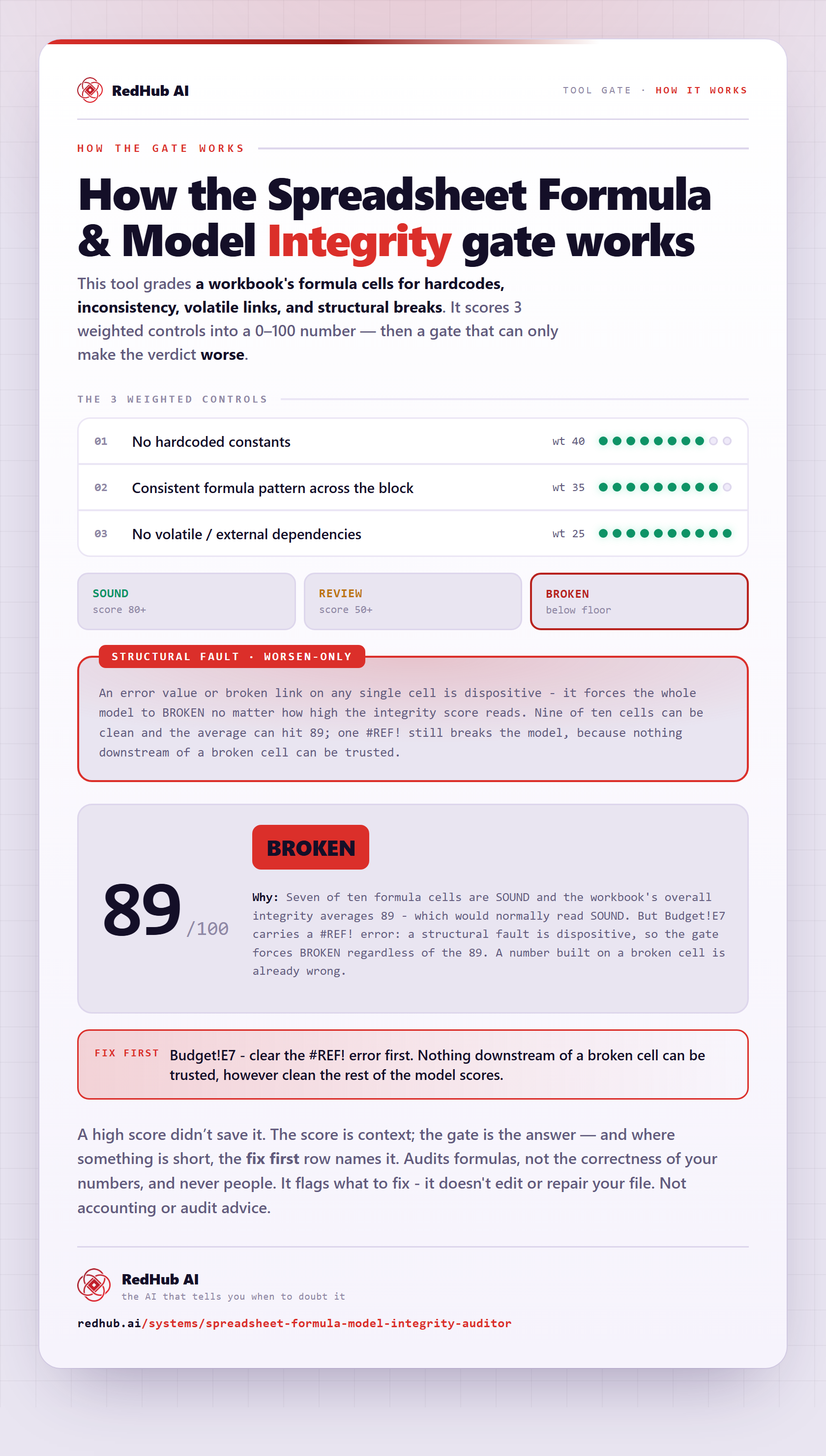
The gate this post refers to, drawn from the tool’s own logic. See the tool.