Folder Structure Best Practices for Small Teams
RedHub AI Editorialupdated October 7, 20266 min read

Jump to a section7
Folder structure best practices for a small team reduce to one instruction: keep the tree shallow enough that nobody has to ask where a file goes. In practice that means three or four levels at most, one stable top level (usually client or project), and a file name that carries the detail. A deep tree feels organized on the day it is built. Later, every new file forces a choice among several plausible subfolders, and different people choose differently.
TL;DR: Pick one top-level axis, add a year below it if you need one, and push document type, date and version into the file name. Treat three or four levels as a working ceiling. Before you flatten an old tree, check for files that will end up with the same name, because the folders were what kept them apart. The File Naming & Organization Engine ($49) is a spreadsheet that marks those pairs as COLLISION. Naming rules are in File Naming Conventions That Don't Fall Apart.
How a shared drive gets this way
Nobody on a five-person team is assigned to the shared drive. It gets built one folder at a time, by whoever needed somewhere to put something that week. After six months the tree is a record of who was in a hurry and when. Asking people to be more careful will not change that. A structure with fewer decisions in it will.
One axis at the top
Choose the thing your team says first when someone asks where a file is. "It's in the Globex folder" means client is your axis. Put that at the top and nothing else. Two axes at the top level, client and document type for example, give every file two homes, and each person picks a different one.
- Top level: the stable thing. Clients and projects rarely change identity.
- Second level, if needed: the year. It separates live work from old work without anyone having to decide what counts as archived.
- Everything else: the file name. Document type, date and version change per file, which is what a name is for.
The files that fit nowhere
One axis has a cost, and it shows up in the first week. The master agreement that covers two clients. The insurance certificate you send to all of them. The price list that belongs to no client at all. A folder tree gives a file exactly one home, and these files have two or none.
The usual answers are an _internal folder beside the clients for company-wide documents, and a shortcut or a second copy for the shared ones. Neither is clean. A second copy goes stale the day the original is edited, and shortcuts break when someone moves the target. Pick one answer, write it down, and accept that a small share of files will sit awkwardly. A structure that handles the common case without thought is worth an occasional awkward file.
Year folders have the same edge: a project that runs from November to February belongs in both years. Filing by the year the work started is a rule people can follow without asking.
How deep is too deep
Three or four levels is a rule of thumb, not a measured limit, and we are not going to dress it up as research. The reasoning is that each level is a choice someone makes when saving and again when looking, and a fifth level usually holds a distinction the file name could carry.
There is one limit that is measured. Microsoft's documentation puts the maximum path length in the Windows API at 260 characters, a value called MAX_PATH. Longer paths are possible, but the same page says both a registry setting and the application have to opt in. A deep tree with descriptive folder names uses that budget quickly.
S:\Shared\Clients\Globex Corporation\2026\Legal\Contracts\Master Services Agreement\Redlines\Round 2 Internal Review\Globex Corporation Master Services Agreement redline round 2 internal review FINAL v3.docx sits nine folders deep and is 207 characters long, which leaves 53 before the limit. Flattened to S:\Clients\globex-corp\2026\2026-05-14_globex-corp_contract_v3.docx, it is three folders deep and 67 characters. The paths are made up to show the arithmetic.Flattening an old tree without losing a file
- Agree on the axis first. Do not move a file until the team has picked client, project or department.
- List before you move. Export the full file list with each file's current folder.
- Give each file its new name. The detail the old subfolders carried goes into the name now.
- Look for repeated names. Then move.
Step 4 matters more in a flattening than anywhere else. In the old tree, Globex\Contracts\Drafts\contract_v1.pdf and Globex\Contracts\Signed\contract_v1.pdf were different files because they sat in different folders. Move both into one folder and the folder name is gone. What the move tool does with the second one depends on the tool. Our post on how to batch-rename files without losing one covers which ones refuse and which ones overwrite.
The File Naming & Organization Engine runs that comparison in a spreadsheet. You enter each file's date, client, document type and version. It builds the corrected name and marks every row that shares a corrected name with another row as COLLISION. It works on the names. It does not move files or create folders, and it has no opinion about your tree.
Flatten the tree without a name clash
One spreadsheet. List the files you are about to move, and it shows the corrected name for each and marks any two that would become the same file name in the new folder. You do the moving.
Get the File Naming & Organization Engine — $49Pairs well with
Once the tree is simple, the open question is which folder each new document belongs in. The Document Classify & Route Kit ($69) answers it with a rule pack you control, and quarantines a document that matches two rules pointing at different destinations. It names the destination; a person or your own automation does the filing. A client folder is often a packet with required contents, and the Document Intake Completeness Checker ($69) checks a packet against your checklist and returns COMPLETE, CHASE or HOLD INTAKE. To see whether filing is even your weakest step, the Document Processing Pipeline Diagnostic ($79) scores six stages and returns AUTOMATED, MANUAL DRAG or STALLED.
More in this guide
What is the best folder structure for a small team?
A shallow one: three or four levels at most, with one stable top level such as client or project. Document type, date and version go in the file name, not in more subfolders.
Should I organize folders by client or by document type?
Pick one for the top level, usually the one your team names first when asking where a file is. Put the other in the file name. Two top-level axes give every file two possible homes.
Where do files go that belong to more than one client?
There is no clean answer. Common choices are an internal folder beside the client folders for company-wide documents, and a shortcut for shared ones. Choose one rule, write it down, and apply it every time.
Is there a hard limit on folder depth?
Not on depth, but Windows has a default limit on total path length. Microsoft's documentation gives it as 260 characters. Deep trees with long folder names can reach it. Longer paths need a Windows setting and an application that both opt in.
How do I reorganize a shared drive without losing files?
Agree on the top-level axis, list every file with its current folder, give each its new name, and look for repeated names before moving anything. Take a copy of the drive first.
Why do folder migrations lose files?
Files with the same name can exist in different folders. When a migration moves them into one folder, the names clash, and some tools replace one file with the other. Checking the planned names for repeats before the move prevents it.
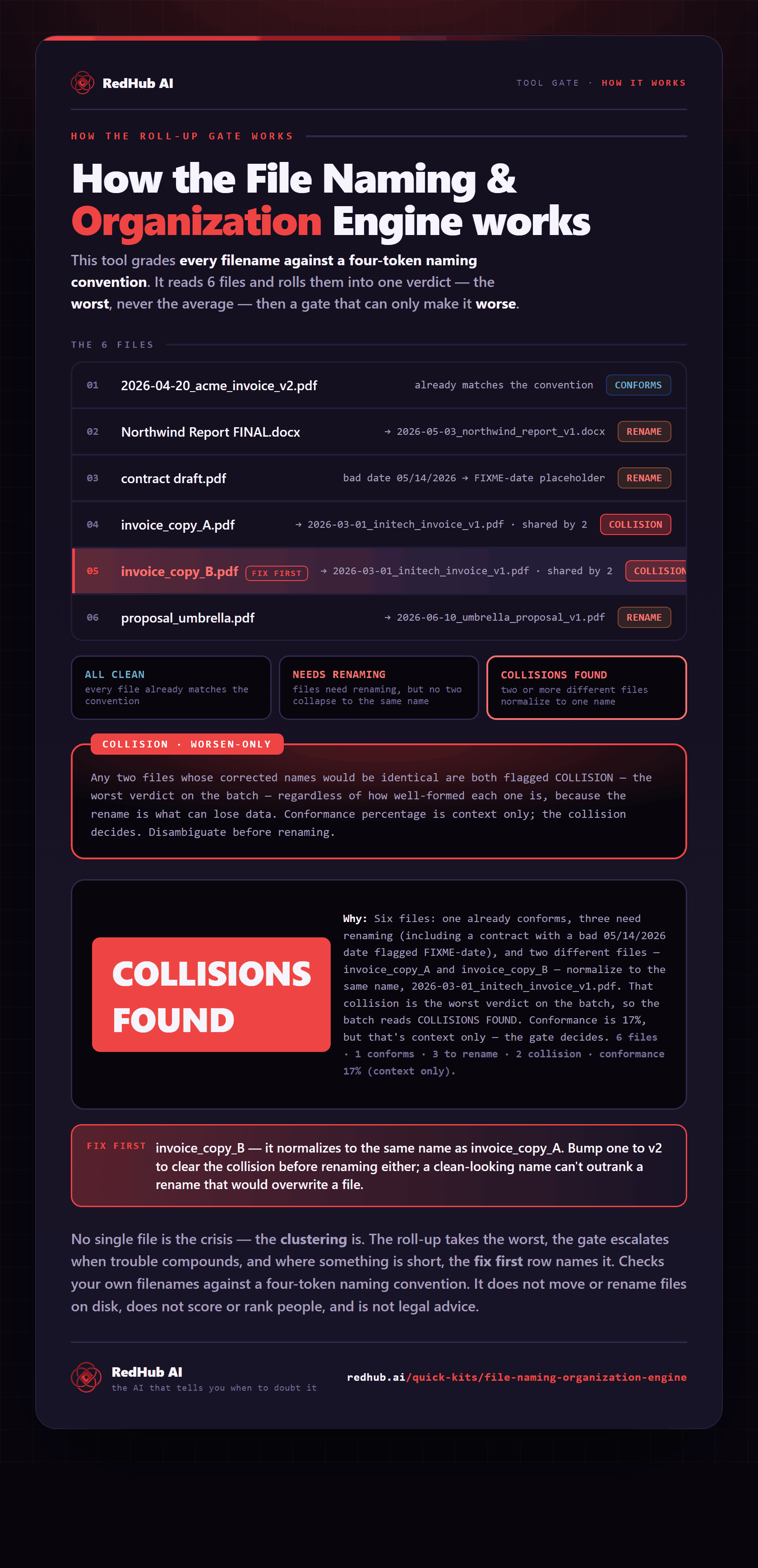
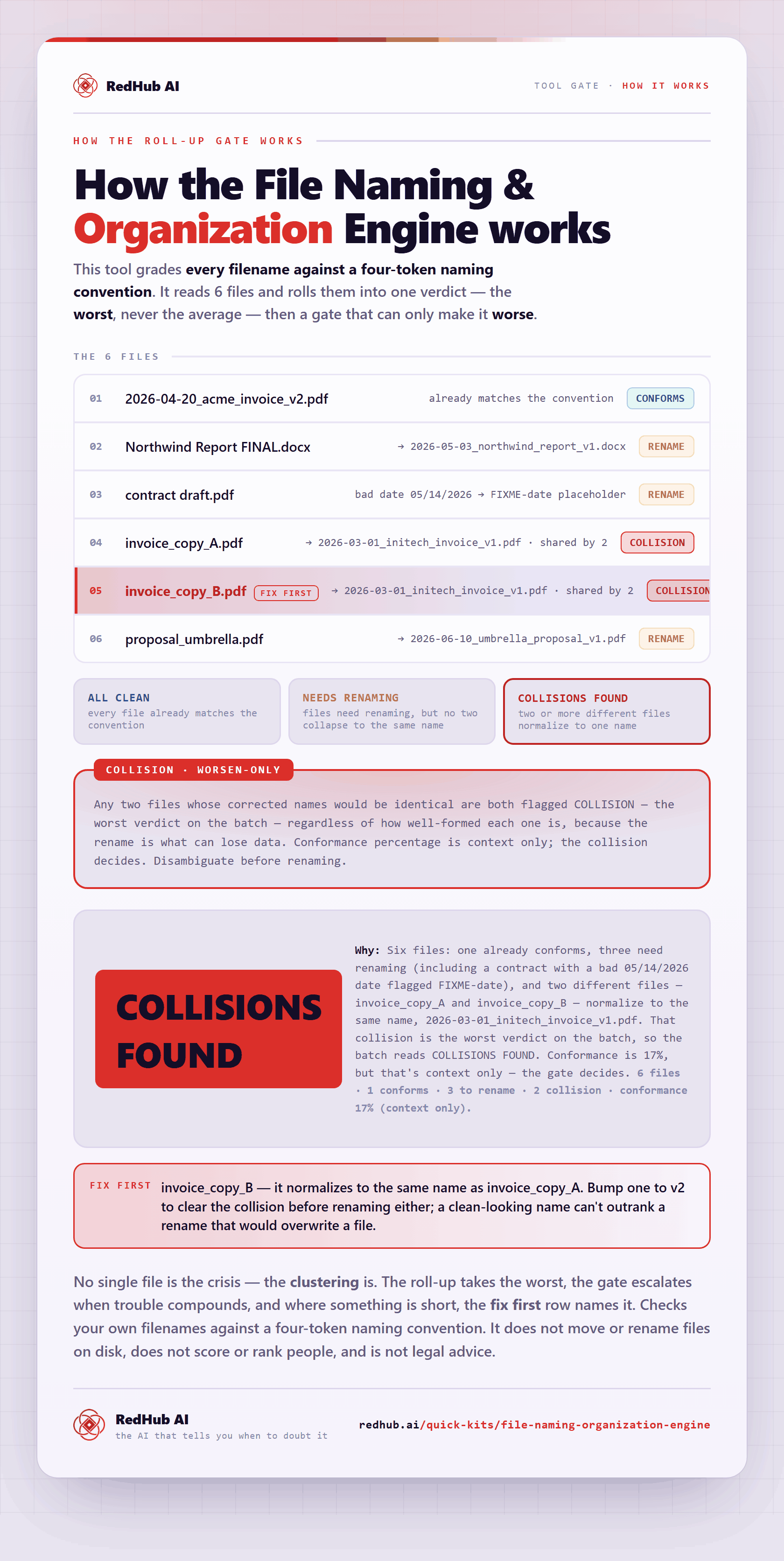
The gate this post refers to, drawn from the tool’s own logic. See the tool.