How to Do a Mail Merge, Step by Step (Without the Headaches)
RedHub AI Editorialupdated October 7, 20266 min read

Jump to a section9
The short version of how to do mail merge is four steps: prepare the data list, build a template with merge fields, check and test a few records, then run the full batch. Step three is the one people skip. It is also where a header that did not match gets caught while it is still a two-minute fix.
TL;DR: Build a spreadsheet with one row per recipient. Write the template with placeholders that match the column headers character for character. Check that every placeholder has a column and every row has its required values, merge three to five records and read them, then run the list. Any merge tool can do the run. The Template Merge & Mail-Merge Engine ($69) does the check before it. New to the idea? Start with what mail merge is.
Step 1: Prepare the data list
Open a spreadsheet. Give each piece of information its own column: first name, last name, amount due, due date, unit number. Put one recipient on each row. Keep the headers short and plain, with no trailing spaces, because the header is the name the template will ask for.
A bookkeeper sending invoices needs at least a client name, an invoice number, an amount and a due date. If the template uses a field, that column should have a value on every row.
Step 2: Build the template with merge fields
Write the document once, the way every copy should read. Put a placeholder wherever a personal value goes. Word shows a merge field as «First_Name». Many email platforms and CRMs use double braces, like {{first_name}}. The syntax depends on the tool. The rule does not: Microsoft's guidance for Excel data sources says the column names in the spreadsheet should match the field names you want to insert.
{{first_name}} against a column headed First_Name or FirstName. To a person those are the same field. To a strict tool they are two different names, and the placeholder has nothing to fill it.Step 3: Check, then test-merge a few records
Two checks happen here, and they catch different things.
The first is a check of the whole list against the template. Does every placeholder have a column? Does every row have a value for each field the template needs? This is a job for a rule, not for your eyes, because the one blank cell in row 140 looks like every other row when you scroll.
The second is a test merge. Run three to five records and open each one. Look for:
- A date or time that shows up as a raw number
- An amount with no currency symbol
- A long name pushing text off a certificate line
- A first name sitting where a last name should be
The test merge shows you how the document reads. The list check shows you which rows are missing something. Neither one replaces the other.
Step 4: Run the full batch
Once the test records read correctly, run the list. Most tools can output individual files, one combined document, or emails. Pick by what happens next. Individual files suit invoices and certificates, where each person gets their own PDF. A combined document suits a single print job.
A worked example: an appointment-reminder run
This example is made up to show the steps.
- A clinic exports 150 upcoming appointments: patient name, date, time and provider.
- The reminder letter has four placeholders, one per column.
- A test merge of 4 records shows the time as 0.375. A spreadsheet stores a time as a fraction of a day, and 9 divided by 24 is 0.375, so that is 9:00 AM stored as a number.
- The clinic converts the time column to text in the spreadsheet, reruns the 4 records, reads them, and runs all 150.
The template was fine the whole time. The fix was in the list.
When the test passes and the batch is still wrong
A test merge reads the first few rows, and the first few rows of a list are often the oldest and cleanest. The blank company name, the email typed without an at sign, the record someone added on Friday afternoon: these sit further down. You can raise the odds by testing rows from the top, the middle and the bottom. You cannot read all 150 by hand every month, and nobody does.
There is a second limit, and a tool does not fix it. A row can be complete, well formed and wrong. If the export says 2:30 PM and the appointment moved to 3:00, the letter merges without a flaw. Checking a merge tells you the documents will render. Whether they are true depends on the system the list came from.
Where a pre-send check fits
Word and most email tools will run the merge. They are less helpful at telling you, before the run, which rows will come out broken. That is the gap a pre-send check fills. The Template Merge & Mail-Merge Engine reads a template and a CSV list and grades every row, then gives the template one verdict. On the sample that ships with it, five rows come back as 3 READY, 1 FIX and 1 BLOCK, with the reason beside each: one row is missing a company, and one has an email that is not an email.
Two limits are worth knowing before you buy. It reads double-brace tokens only, so a Word template with «First_Name» fields has to be copied out as text with {{first_name}} tokens first. And it treats a field as optional only when its config file marks it optional, so you set that list for your own columns.
Check every row before the batch runs
The Template Merge & Mail-Merge Engine returns READY, FIX or BLOCK per row and MERGE READY, FIX ROWS or HOLD per template. A placeholder with no data column, or a malformed token, forces HOLD however many rows are clean. It ships as a Python script, a workbook, two playbooks and a worked sample. It never fills or guesses a value, and it does not send. Lifetime access, 12 months of updates, 30-day refunds.
Get the Template Merge & Mail-Merge Engine — $69Pairs well with
If the data starts in PDFs or scans, the AI Document Extraction Kit ($99) pulls invoices, receipts and forms into structured data and flags low-confidence fields for a person to review. If you want to know whether this month's list agrees with the system it came from, the Two-List Reconciliation Kit ($49) joins the two on an exact key and marks each key RECONCILED, EXCEPTION or ORPHANED. And when the run leaves you with a folder of output files, the File Naming & Organization Engine ($49) checks names against a four-part convention and marks any two that would end up identical as COLLISION.
More in this guide
What is the first step in doing a mail merge?
Preparing the data list: a spreadsheet with one column per field and one row per recipient. The column headers become the field names the template asks for, so keep them short and consistent.
Why does my merge show the field name instead of the real data?
Usually the placeholder in the template does not match the column header exactly. A difference in spelling, spacing or capitalization is enough. Less often, the cell for that row is empty.
How many records should I test before the full merge?
Three to five is enough to see how the document reads. Pick rows from the top, middle and bottom of the list. A test merge will not find every bad row, so pair it with a check that reads the whole list.
Should I output individual files or one combined document?
Individual files when each recipient needs their own PDF, as with invoices and certificates. One combined document when you are printing the whole batch in a single job.
Can I mail merge to email instead of printed letters?
Yes. Microsoft lists email as one of the outputs of Word's mail merge, with each recipient's address alone on the To line. Email platforms and CRMs have their own merge features too.
Why does a time or date show up as a number in my merge?
Spreadsheets store dates and times as numbers and only display them as dates. A time of 9:00 AM is stored as 0.375, which is 9 divided by 24. Convert the column to text in the format you want before merging.
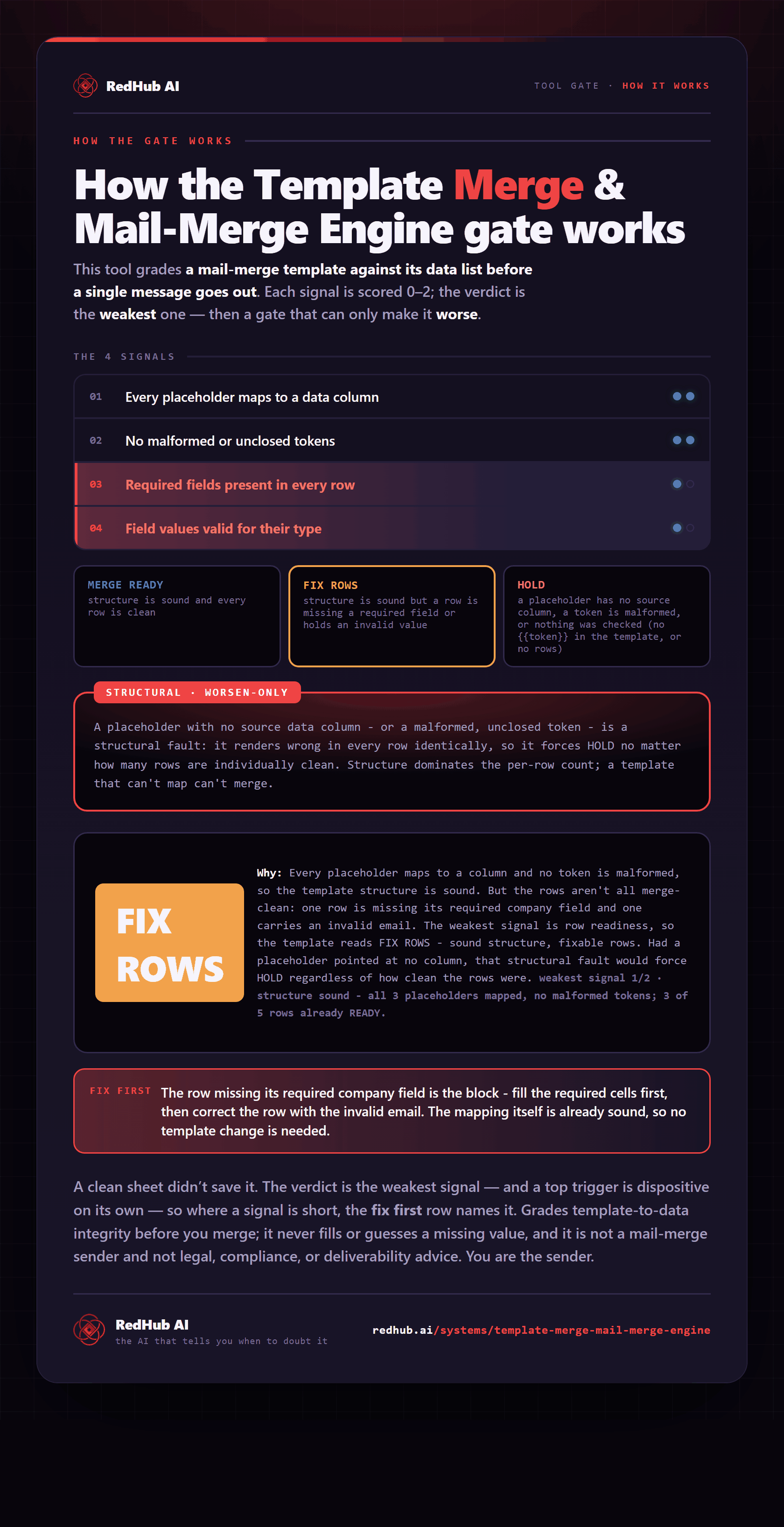
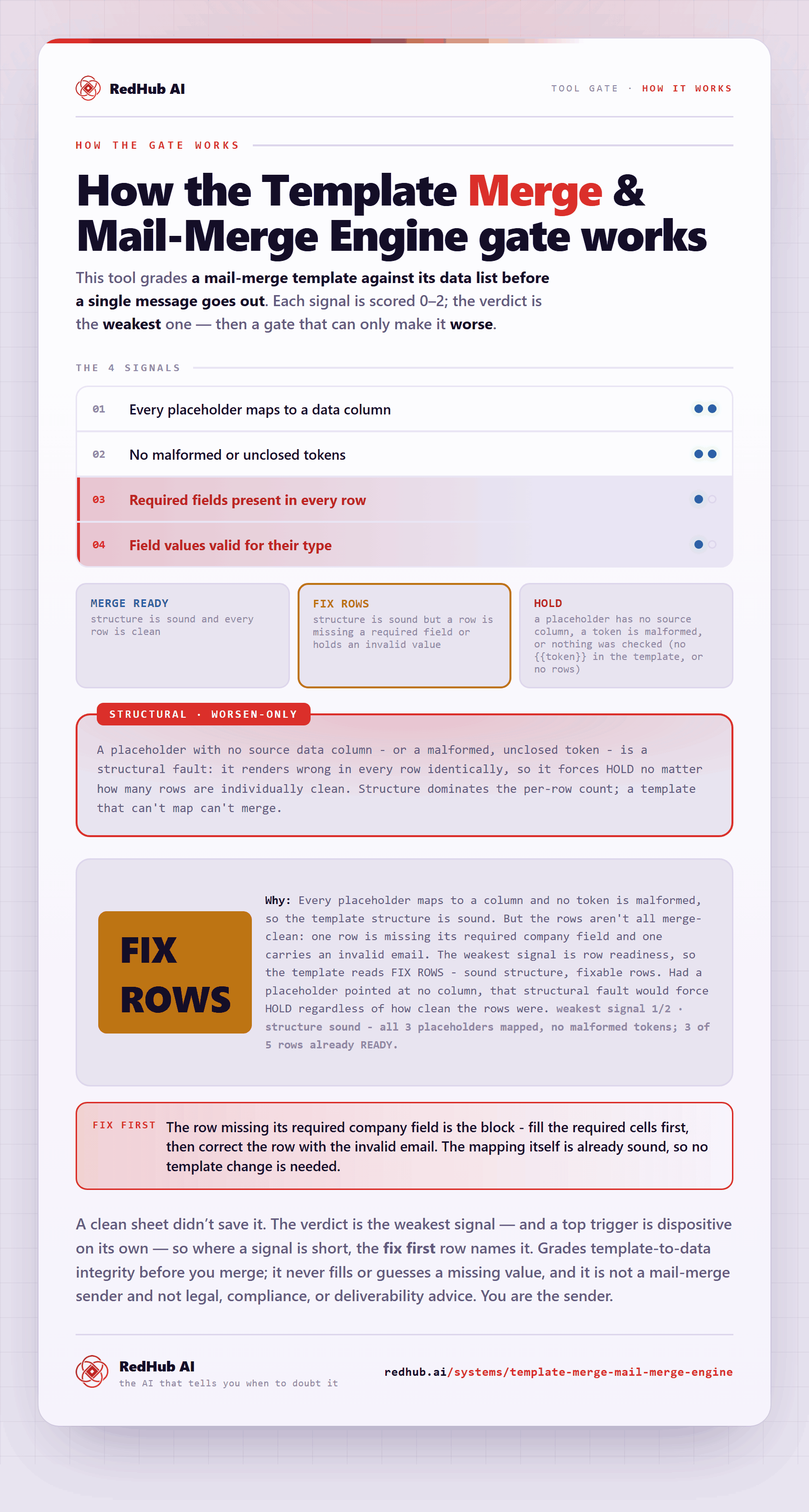
The gate this post refers to, drawn from the tool’s own logic. See the tool.