AI Receipt and Document Capture for Bookkeeping, Done Right
RedHub AI Editorialupdated September 20, 20264 min read

Jump to a section8
AI can read a receipt or invoice image and pull out the vendor, date, amount, and line items into a draft entry — turning a manual data-entry task into a quick review task. Done right, that's a real time saver. Done carelessly, it's a way to post bad data faster than you could have typed it in by hand.
TL;DR: AI receipt capture drafts vendor, date, amount, and line-item data from an image so you don't retype it — but OCR misreads (a smudged total, a transposed digit) are common and easy to miss if you don't check the draft against the actual receipt. Review every captured field before it posts, and be careful about which tool you send client receipts to. Not accounting or tax advice.
What AI Receipt Capture Actually Does
Point an AI tool at a photo or scan of a receipt or invoice, and it extracts structured data — vendor name, date, total amount, tax, and often individual line items — into a draft transaction. That draft still needs a category assigned and a review before it posts, but it eliminates the manual retyping that used to be most of the work.
Where AI Receipt Capture Goes Wrong
| Failure Mode | What Happens |
|---|---|
| Poor image quality | A blurry, folded, or faded receipt produces a misread total or date — and the AI presents its best guess with the same confidence as a clean read. |
| Transposed digits | A total of $91.50 misread as $19.50 is a classic OCR error that's easy to miss if you don't glance at the source image. |
| Tip or tax confusion | Restaurant and service receipts often have the AI mis-splitting subtotal, tax, and tip into the wrong fields. |
| Duplicate submissions | The same receipt photographed twice (by an employee submitting an expense, for example) can create two draft entries if there's no duplicate check. |
A Receipt Capture Review Habit
A quick habit catches nearly all of the above:
- Glance at the source image next to the extracted data — don't just trust the numbers on the screen.
- Confirm the total matches what's visibly printed on the receipt, digit by digit.
- Check that tax and tip (if any) were split correctly.
- Scan for a duplicate before posting — same vendor, same amount, same date.
Protecting Client Documents
Receipts and invoices often contain more than just the expense data — a card's last four digits, a client's home address on a delivery receipt, sometimes more. Before uploading client documents to any AI capture tool, know whether that tool retains or trains on the images you send, and get client consent for AI-assisted document processing as part of your engagement terms.
Setting Up a Clean Capture Workflow
- Standardize how receipts arrive — a dedicated inbox or upload folder, not scattered across email and text messages.
- Run AI capture as the first pass to draft vendor, date, amount, and category.
- Review each draft against the source image before assigning it to a batch for posting.
- Keep the original image attached to the entry — it's the source of truth if a question comes up later.
Pairs Well With
Once captured receipts are categorized and posted, the Multi-Source Data Reconciliation Engine ($89) matches those entries against bank and card feeds across multiple sources. The Finance & Reporting Automation Kit ($129) turns the clean data that results into automated reporting.
More in this guide
FAQ
Is this accounting or tax advice?
No. This is educational content about using AI for receipt and document capture in a bookkeeping workflow, not accounting, tax, or legal advice. Expense data should always be reviewed by a qualified bookkeeper before it's finalized.
How accurate is AI receipt capture?
Generally good on clear, well-lit images and unreliable on blurry, folded, or faded ones. Because AI presents misreads with the same confidence as accurate reads, every extracted field needs a quick check against the source image.
What's the most common AI receipt-capture mistake?
Transposed digits in the total amount and mis-split tax or tip fields — both easy to catch with a quick glance at the source image, easy to miss without one.
How do I avoid posting duplicate receipts?
Scan new drafts against recently posted entries for matching vendor, amount, and date before posting — especially when receipts arrive through more than one channel, like email and an expense app.
Is it safe to upload client receipts to an AI capture tool?
Only with care. Receipts can contain sensitive details beyond the expense itself. Check the tool's data retention and training policy, and get client consent for AI-assisted document processing.
Should I keep the original receipt image after AI extracts the data?
Yes. Keep the original attached to the posted entry — it's the source of truth if the extracted data is ever questioned later.
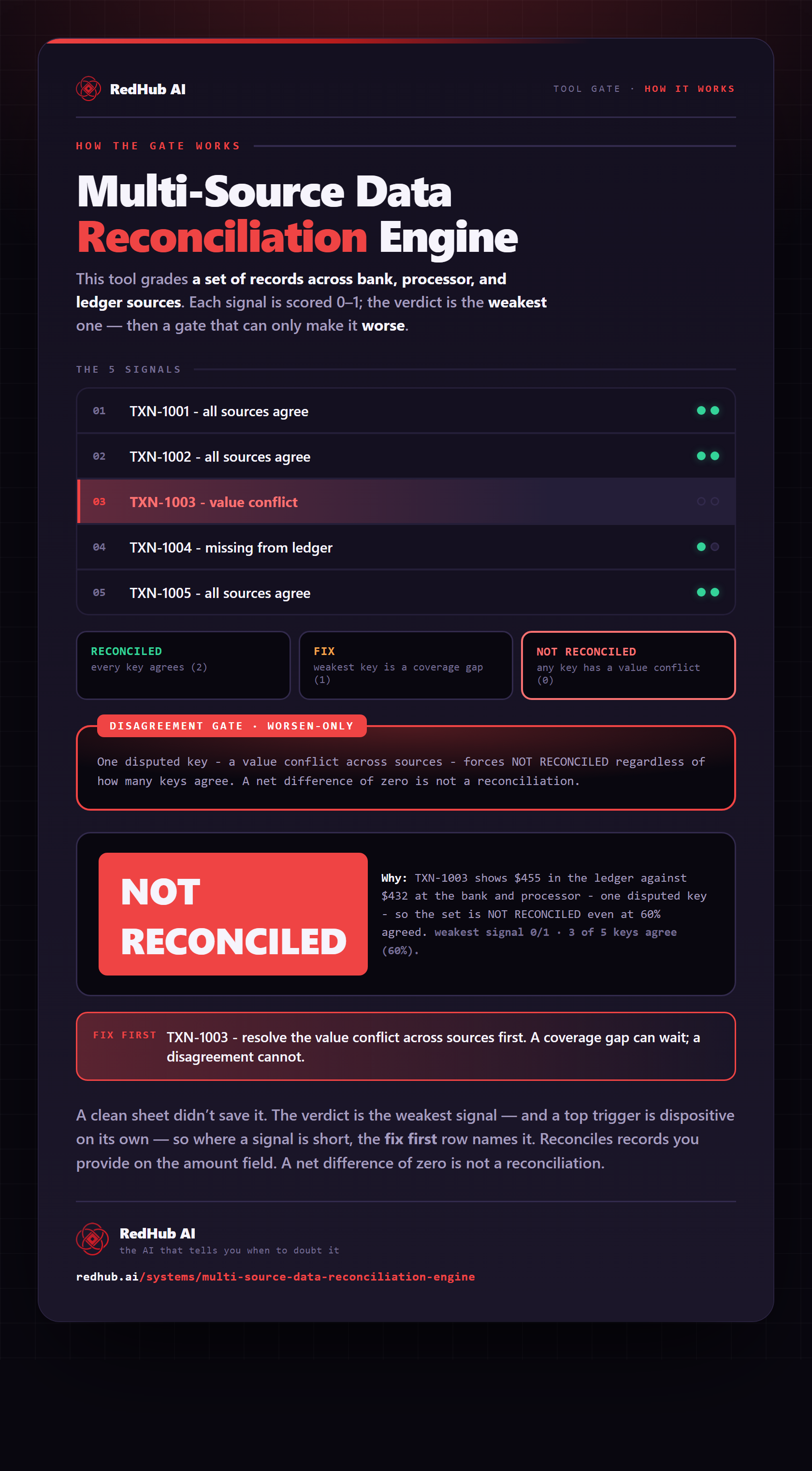
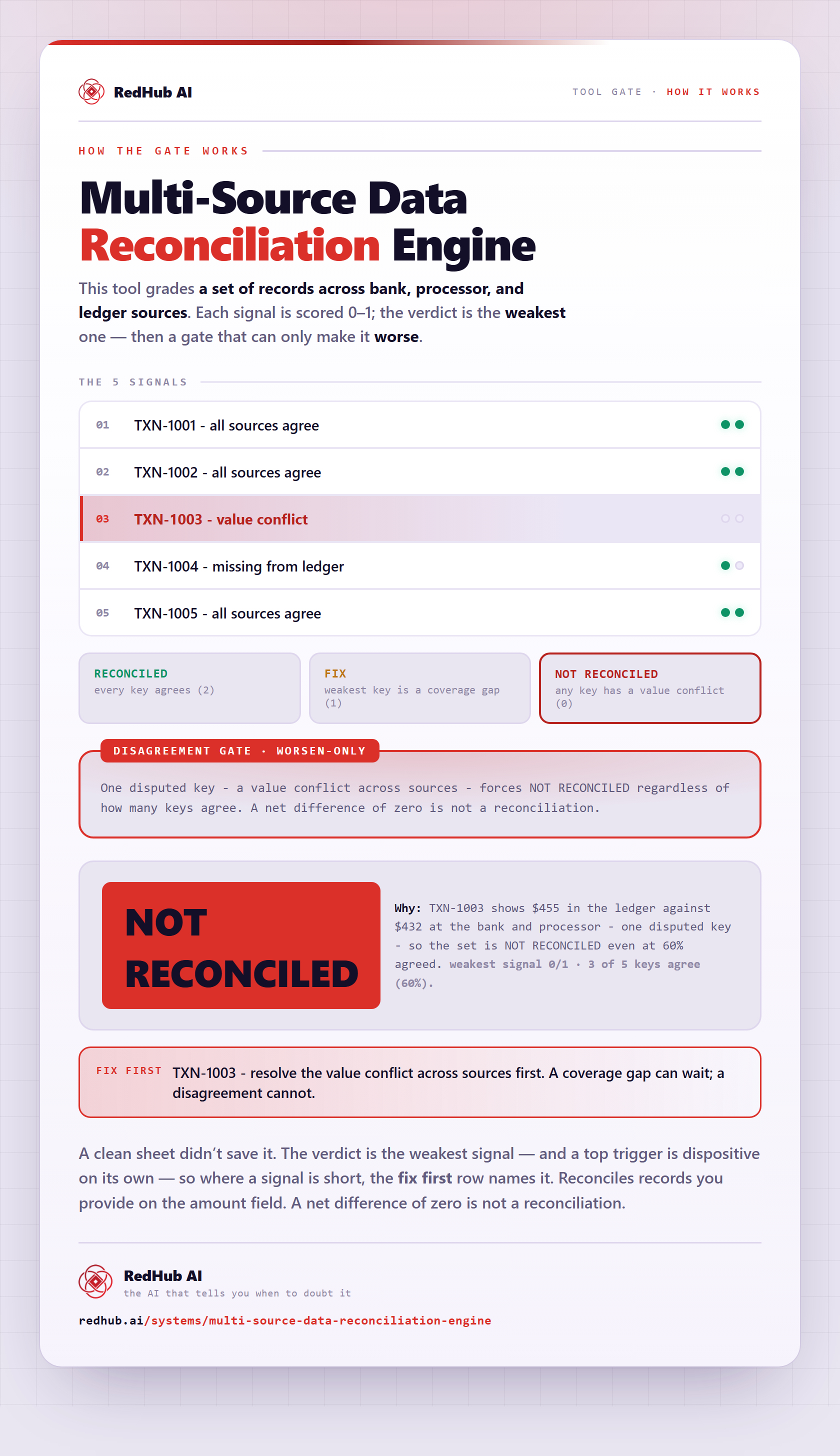
The gate this post refers to, drawn from the tool’s own logic. See the tool.